eduroam client configuration on Windows 10
To configure the eduroam network on a computer running the Windows operating system, follow these steps:
Connect your computer to the internet.
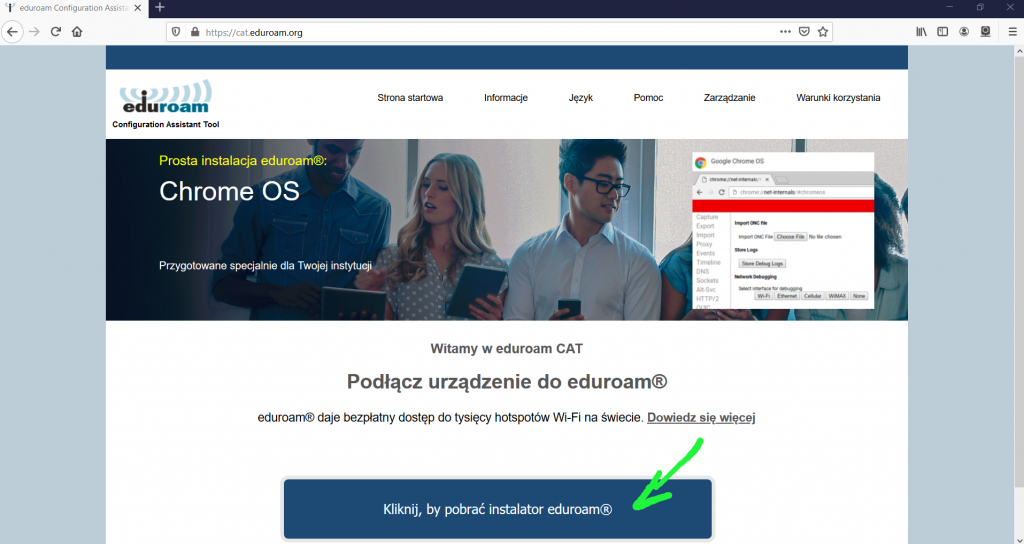
Open the website https://cat.eduroam.org in any web browser, then click the button labeled “Click here to download your eduroam installer.”
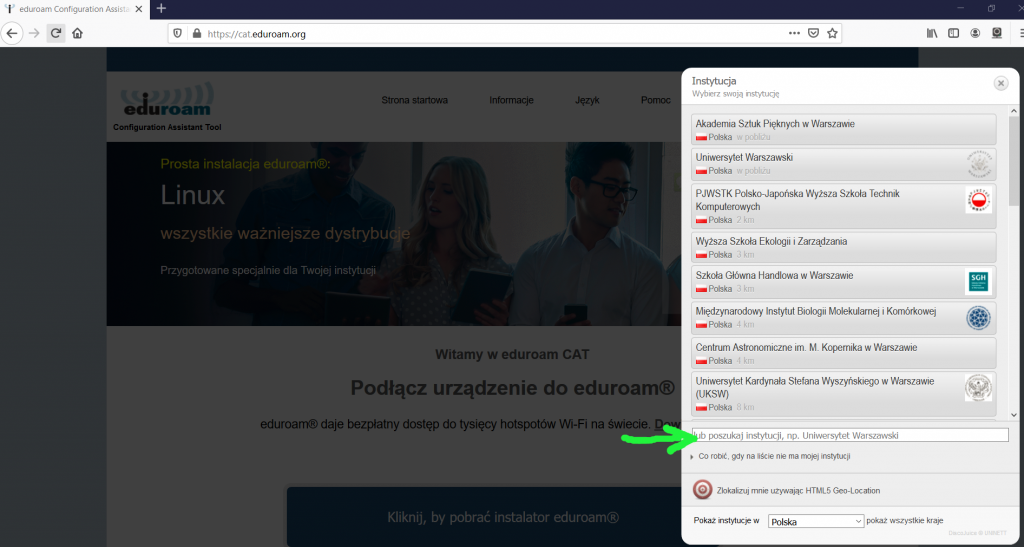
If “Politechnika Świętokrzyska w Kielcach” (Kielce University of Technology) does not appear on the list, enter the word “politechnika” or “kielce” in the field indicated by the arrow.
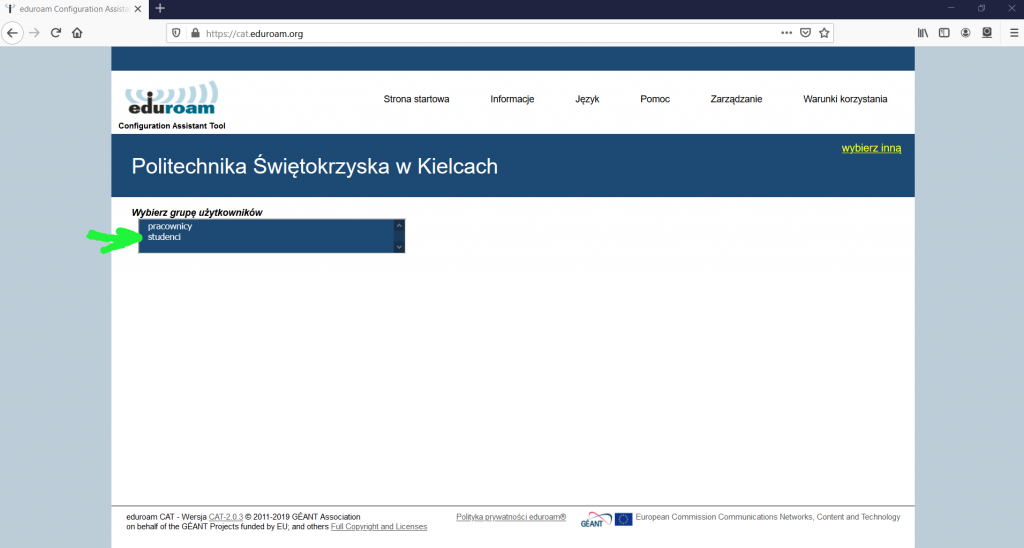
next, you must specify whether you are an employee or a student
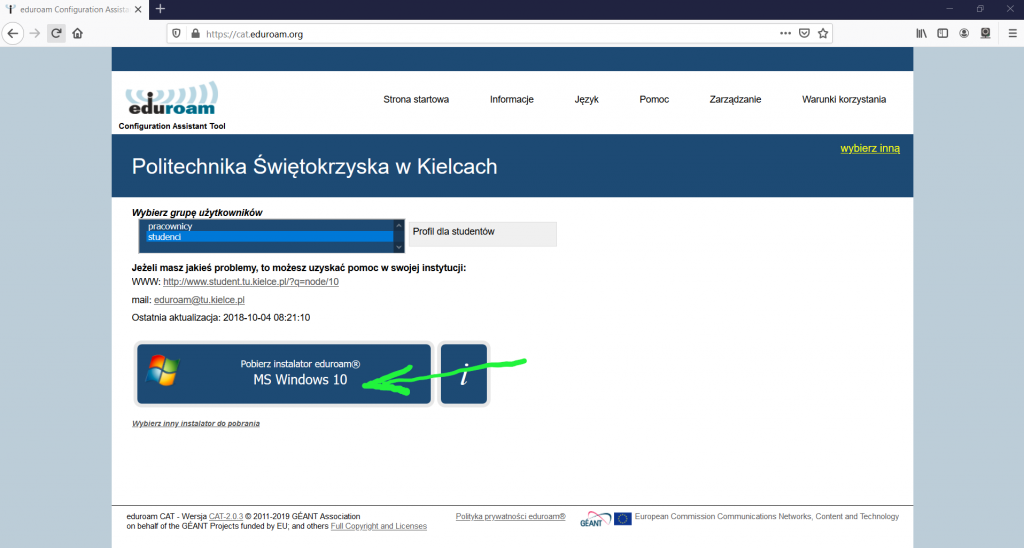
next, click on the box labeled “Download eduroam installer” next to the description of the detected operating system (or select a different operating system and confirm your choice)
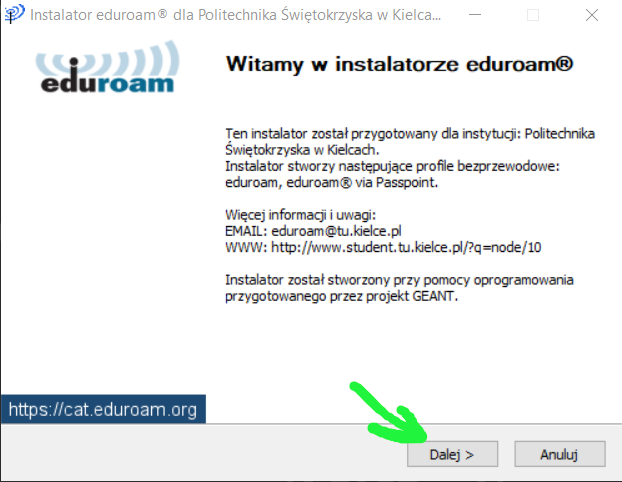
After downloading the installer, you should run the downloaded program:
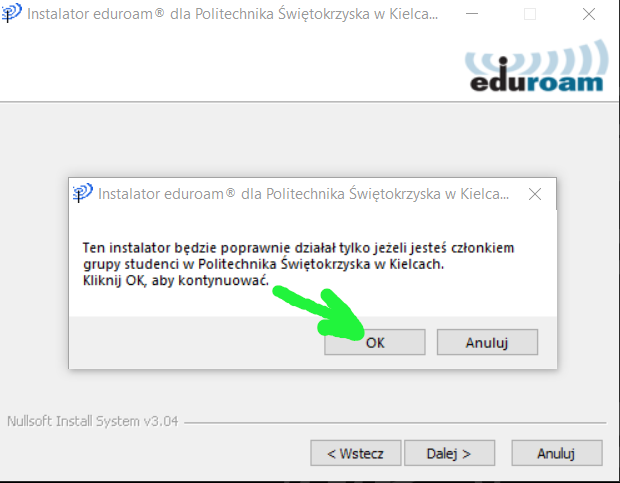
then confirm the selection:
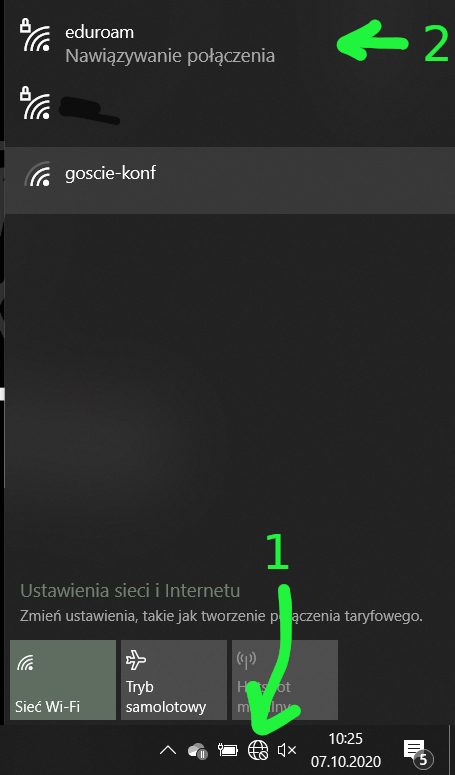
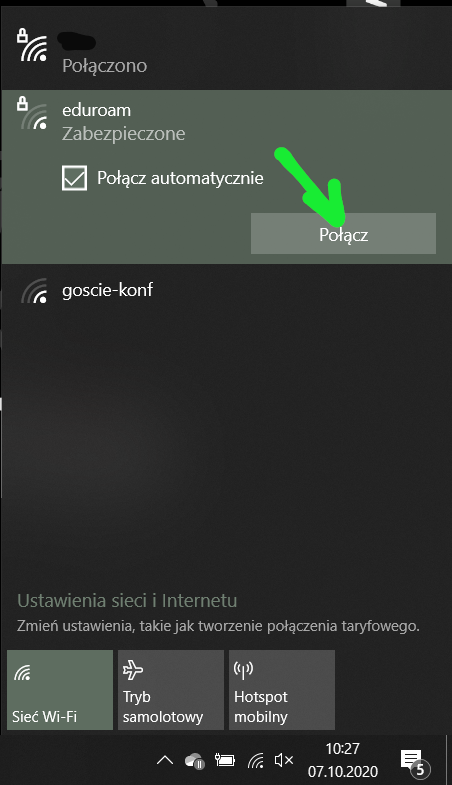
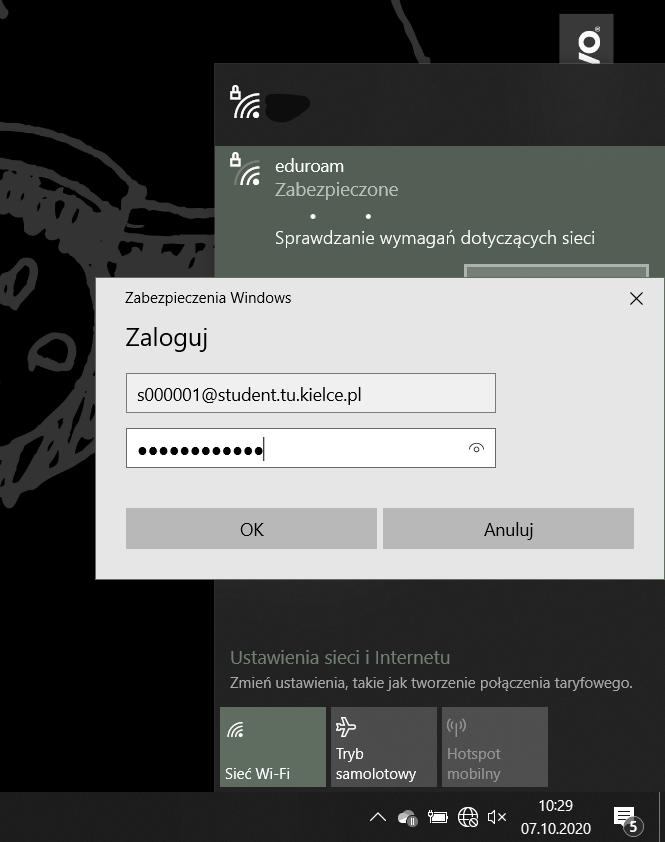
The login (username) follows the format sXXXXXX@student.tu.kielce.pl, where ‘s’ is the letter “s”, and XXXXXX is the student ID number (as it appears on your student ID card—typically including a leading zero). Once the installation is complete, close the program; you can then establish a network connection:
Once the device details have been entered, the device should be automatically included when it connects to the network.

To establish a connection, you may need to disconnect from and then reconnect to the Wi-Fi network.

If the password is incorrect, a window will appear asking for the password and username.