procedura zmiany hasła

Changing your password in the manner described below will also change the passwords for the following network services:

  • The eduroam Wi-Fi network
  • The Moodle platform
  • Your email account on the mail server
  • The VPN service

To change your password, please visit:

https://r4s.tu.kielce.pl/konto/

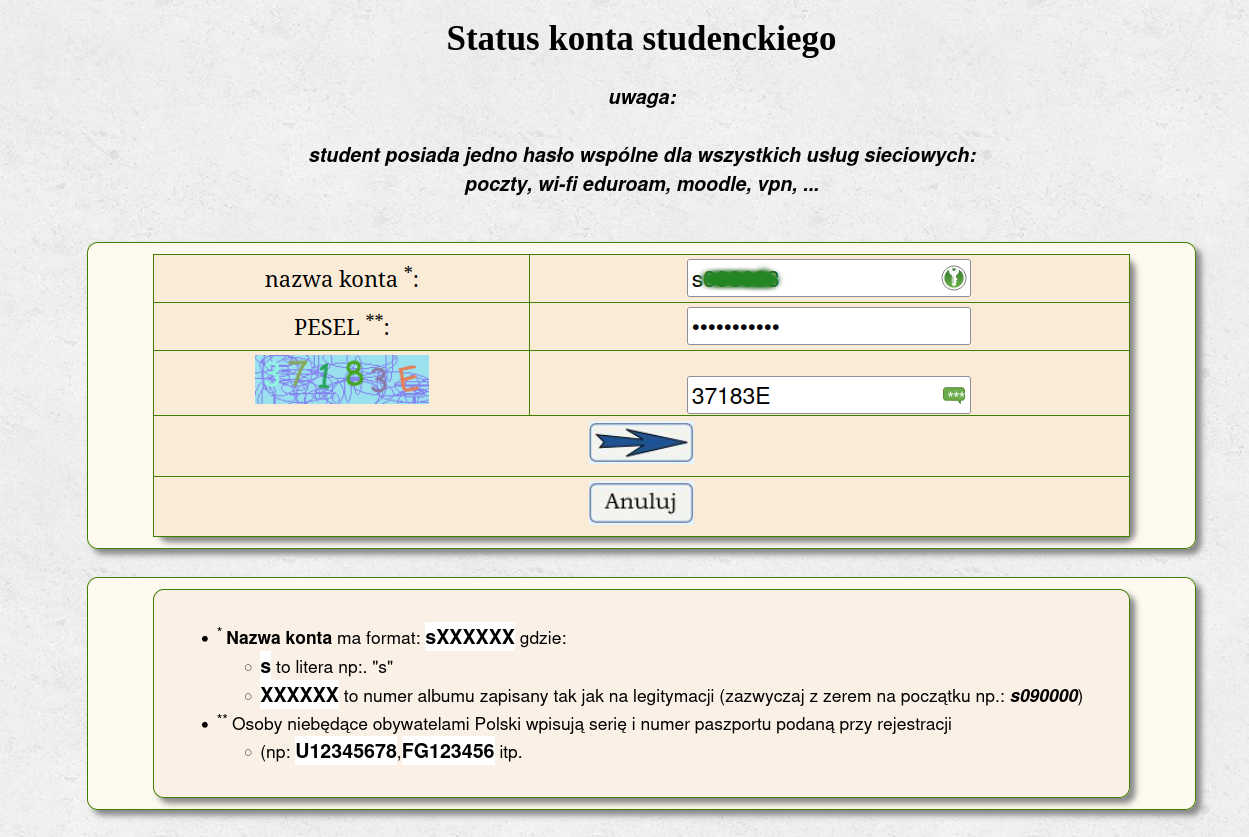
Next complete the required information username and PESEL number (), enter the code from the image, and click the arrow button. 

Note: Erasmus students should enter their passport number, including the preceding letters, or their national identification number from their country of origin, instead of their PESEL number.
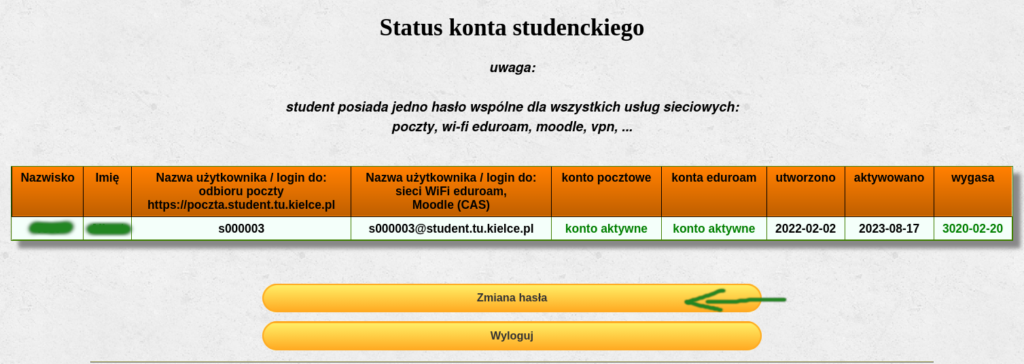
 

Next select „zmiana hasła” (password change)

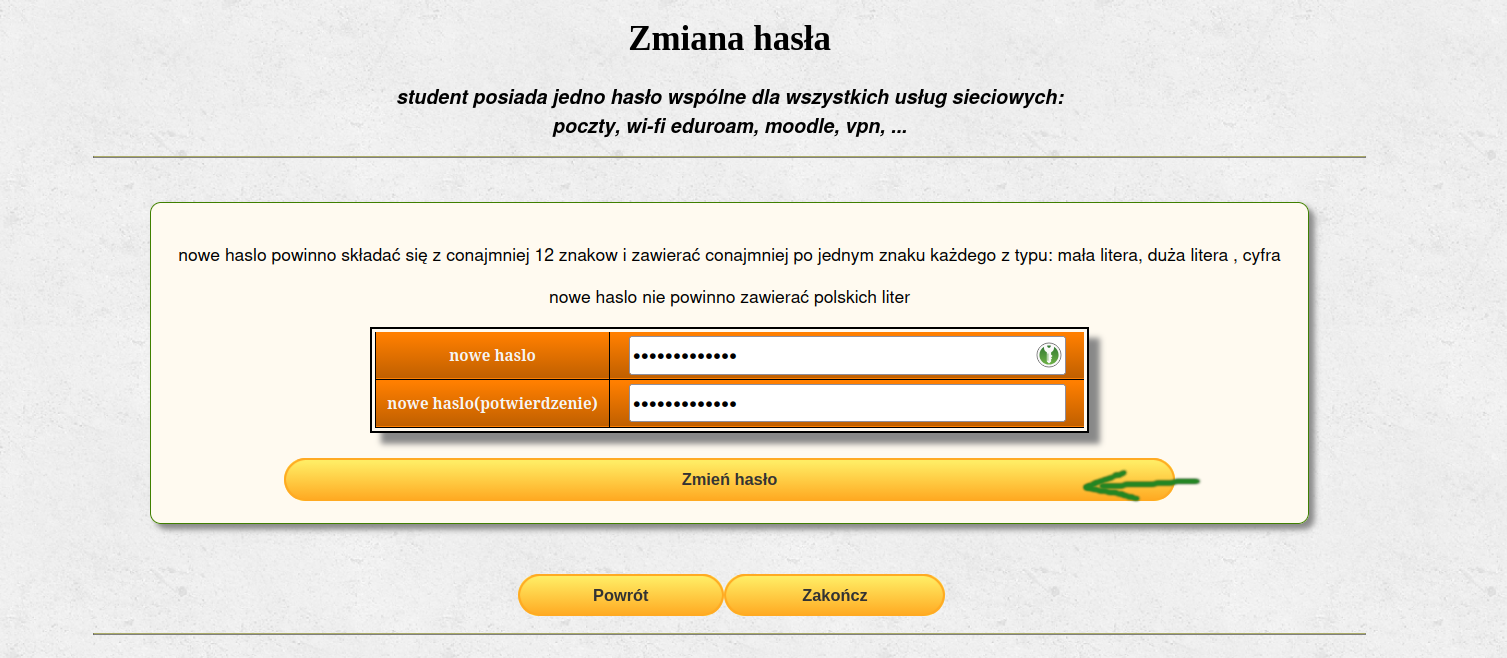
Next, we enter the new password twice, in a format that meets the requirements, i.e. at least 12 characters (including a lowercase letter, an uppercase letter, and a digit), and then click „zmień hasło” (Change password).

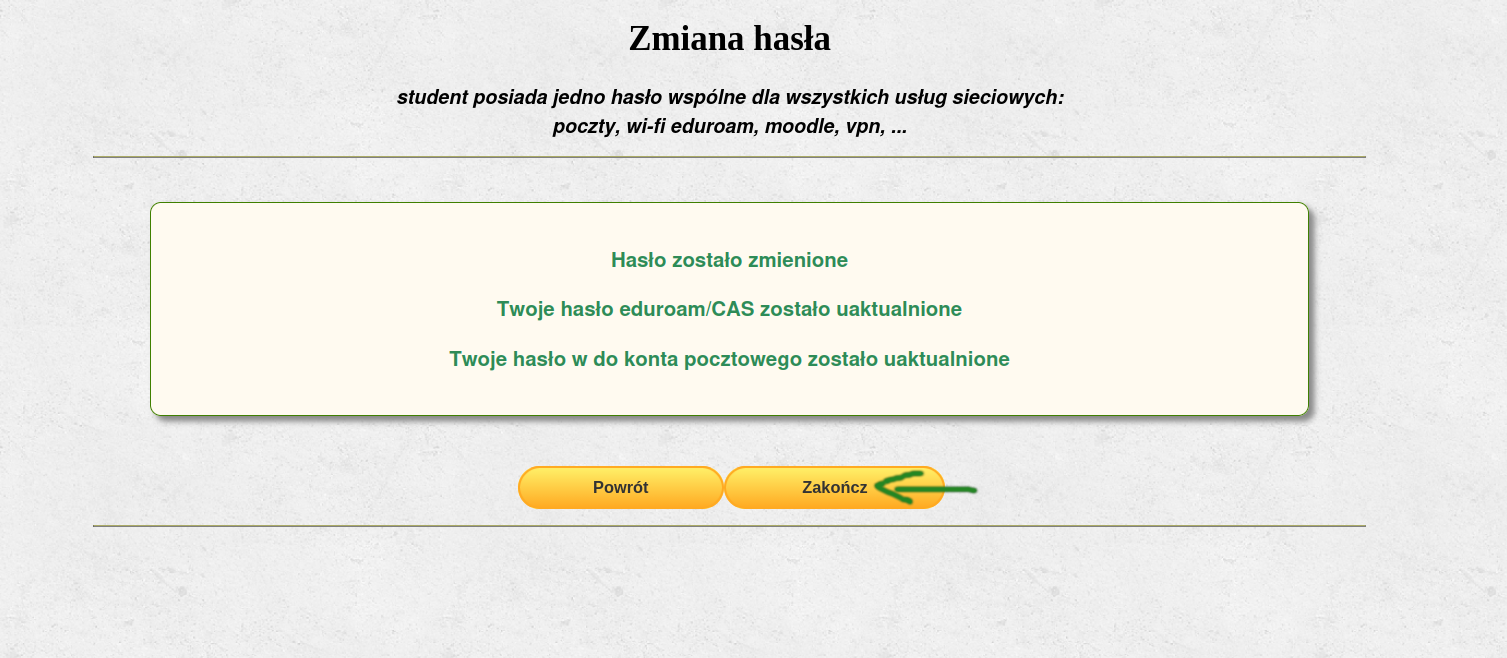
This screen confirms that the password has been changed if all the messages are displayed in green. After changing the password, click “Zakończ” (Finish) to return to the Student Server page.